What if your hand could be the brush? That is the idea behind GestureDraw, an AI-powered hand gesture drawing app from Orbit Tech Lab. It lets you draw, move, erase and clear a virtual canvas using only your webcam and finger gestures — no stylus, no mouse, no drawing tablet required.
Built with Python, OpenCV and MediaPipe, GestureDraw reads your hand in real time and translates natural gestures into precise canvas actions. Every video frame is processed locally on your machine, so the camera feed never needs to travel to a cloud server. This article walks through what the app does, how the gesture modes work, and how to get started.
What is GestureDraw?
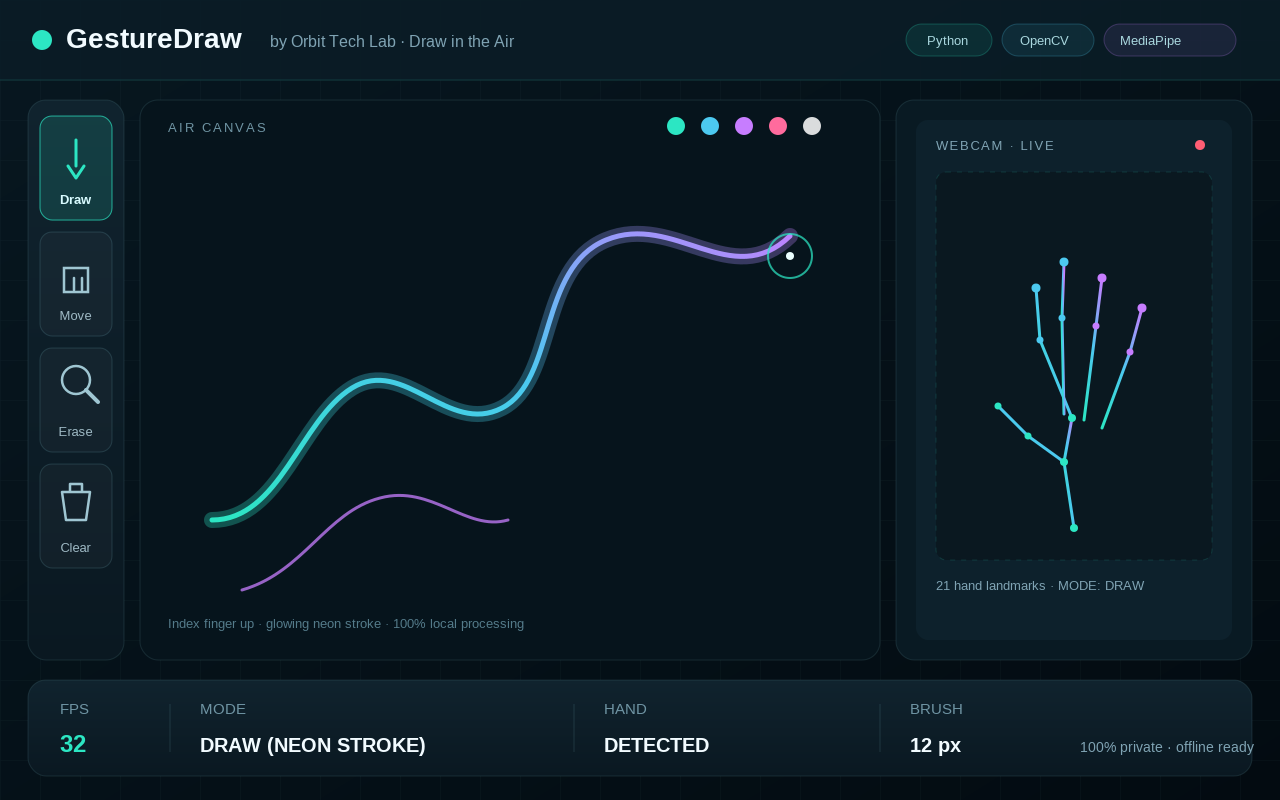
GestureDraw turns an ordinary webcam into an input device for a virtual canvas. It detects 21 3D hand landmarks at 30+ frames per second, works out which fingers are raised, and maps that pose to a tool: paint a glowing neon line, lift the pen and select a color, wipe away a stroke with a circular eraser, resize the brush with a pinch, or clear the whole board with a deliberate open-palm hold.
The result feels closer to sketching in the air than using a conventional drawing program. Move your index finger and the canvas follows with a smooth, anti-aliased glowing trail. Raise two fingers and the pen lifts so you can navigate the toolbar without leaving the canvas. It is a small interaction shift, but it changes what a drawing app can feel like.
The gesture language: six modes
GestureDraw uses six deliberately distinct hand poses. Each one maps to a single intent, which keeps the interaction predictable once you have learned the basics.
Mode 1 — Index finger only: draw
Point with your index finger while the other fingers stay folded. This paints a smooth neon stroke. The stroke is anti-aliased and glows, so even fast movements remain visible and easy to follow.
Mode 2 — Index and middle fingers: move and hover
Raise two fingers to lift the pen without drawing. In this mode you can hover over toolbar icons or the color palette; holding the pointer over a control for roughly 0.6 seconds triggers a click. It is the equivalent of moving your hand off the paper to pick up a different tool.
Mode 3 — Three fingers: precision eraser
Index, middle and ring fingers up activate a circular eraser cursor. Hover over the part of the canvas you want to remove and the strokes disappear cleanly, without affecting the rest of your drawing.
Mode 4 — Open palm: hold to clear
Clearing the whole canvas is intentionally harder than drawing on it. Hold all five fingers up for one second and an animated progress ring fills around your cursor. If you move or close your hand early, the clear is cancelled — so you never wipe the board accidentally.
Mode 5 — Thumb and index pinch: brush resize
Pinch your thumb and index finger together to change brush thickness dynamically. The brush scales from a fine 2px line up to a bold 48px stroke, giving you both fine detail and broad fills without touching a settings panel.
Mode 6 — Closed fist: pause and idle
When you need a break, rest your hand in a fist. Tracking pauses while your drawing state is preserved, so you can stretch, adjust your camera or think about the next stroke without accidentally painting.
Powerful features built around the canvas
The gesture modes are only half of the experience. GestureDraw also includes:
- Neon air strokes: smooth, glowing lines that stay legible against the dark canvas.
- Tool hover selection: 0.6-second dwell clicks let you change tools and palettes without a physical input device.
- Precision eraser: a visible circular cursor makes it clear exactly what will be removed.
- Confirmed clear: the one-second progress ring prevents accidental wipes.
- Export and recording: save transparent PNGs of your artwork or record MP4 demo videos of the drawing process.
How it works
Getting started takes three steps:
- Use your webcam. Allow the app to access your camera. Video frames are processed 100% locally on your machine.
- Make hand gestures. Draw, move or erase with your fingers. MediaPipe detects 21 3D hand landmarks in real time at 30+ FPS.
- See the magic. Watch your air drawing appear live, then export a transparent PNG or record an MP4 demo.
Try it in your browser first
Not ready to install a desktop app? The GestureDraw landing page includes a live in-browser demo. Start your webcam and use the same gesture controls directly in the browser — Start Webcam, Undo, Clear and Save PNG are all available, along with live FPS, mode and hand-status indicators. All video is processed client-side and never leaves your computer, and the demo works offline after it has loaded.
That browser playground is a good way to check your lighting and camera framing before downloading the full desktop application.
Privacy by design
Drawing with a webcam raises an obvious question: where does the video go? With GestureDraw, the answer is nowhere. Hand tracking runs locally through OpenCV and MediaPipe; there is no cloud upload and no remote recording of your camera feed. The in-browser demo is explicitly client-side and works offline after loading, and the desktop app follows the same local-first approach.
For studios, classrooms and anyone working with sensitive material, that matters. You get the convenience of camera-based input without handing your video to a third party.
Who is it for?
Artists and hobbyists can sketch in a more physical way. Educators can annotate and demonstrate ideas in front of a class. Presenters can draw attention to a point without breaking their flow. And anyone curious about gesture computing can use the browser demo as a low-friction introduction to hand tracking. If you have ever wanted to sketch an idea in the air, this is the closest thing to picking up an invisible pen.
Frequently asked questions
Does GestureDraw need an active internet connection? No. Video processing happens locally, and the browser demo works offline after it has loaded. You only need a connection to reach the landing page or download the desktop build.
Is my webcam video recorded or uploaded? No. Frames are processed on your machine for hand landmark detection and are not sent to a cloud server.
What hardware do I need? A computer with a working webcam and a supported desktop operating system. Good, even lighting gives the most reliable tracking — face the camera, keep your hand inside the frame and avoid strong backlighting.
Get started
GestureDraw is a desktop app by Orbit Tech Lab, with a browser demo if you want to try it first. Visit the landing page to download the app, watch the demo and read the full gesture guide.