
Search for a VPN and you'll find two very different things under the same name: a small extension you add to your browser, and a full app you install on your phone or computer. Both hide your IP address. Both encrypt your connection. But they protect different amounts of what your device does — and choosing the wrong one leaves a gap you won't notice.
We ship both: Orbit VPN Orbit Call AI is a browser extension for Chrome and Microsoft Edge, and an Android app. Here's the honest difference between the two.
How a browser extension VPN works
A browser extension can only control the browser it's installed in. When you switch it on, the browser sends its traffic through an encrypted proxy: a secure TLS connection from your browser to the provider's server, which then fetches the pages for you. Sites see the server's IP address instead of yours, and the network you're on sees only the encrypted connection.
What it doesn't touch is everything else on the computer. Your email client, a game, a desktop chat app, system updates, even a second browser — all of those keep using your normal connection and your real IP address.
That isn't a flaw; it's the design. It also means an extension installs in seconds, needs no administrator rights, and leaves the rest of your computer exactly as it was.
How a VPN app works
A VPN app works one level lower. It asks the operating system to create a virtual network connection, and then every app on the device sends its traffic through that tunnel — browser, messaging apps, maps, background sync, all of it. Modern apps do this with WireGuard, a protocol designed to be fast and to reconnect quickly when you move between Wi-Fi and mobile data.
On a phone this matters more than on a computer, because so little of what a phone does happens in the browser. Most of your traffic comes from apps.
Side by side
- What's protected — Extension: the traffic of that one browser. App: every app on the device.
- How it connects — Extension: an encrypted (TLS) proxy. App: a system-level tunnel, typically WireGuard.
- Setup — Extension: one click from the browser's store, no system permissions. App: installed from the app store, and the system asks you to approve the VPN connection once.
- Leak to watch for — Extension: WebRTC. App: the moment the tunnel drops.
- Best for — Extension: private browsing on a laptop or a shared computer. App: a phone you carry between networks all day.
The leaks worth knowing about
WebRTC leaks (extensions)
WebRTC is the browser technology behind video calls and peer-to-peer connections. To set those connections up, it can reveal your real IP address to a website — even when the rest of your browsing is going through a proxy. A VPN extension that doesn't deal with this can leave your real address visible to any site that asks.
The fix is a WebRTC leak shield that stops the browser handing out your real IP. Check that the extension has one, and that it's on by default rather than buried in settings.
Dropped tunnels (apps)
If a VPN connection drops for a few seconds — you walk out of Wi-Fi range, the phone wakes from sleep — your apps will happily carry on over the normal connection unless something stops them. That something is a kill switch.
On Android, the system provides one. In your VPN settings you can turn on Always-on VPN and block connections without the VPN, so nothing leaves the phone outside the tunnel. A good Android VPN app is built to work with that setting.
DNS lookups
Before your device connects to a site, it looks the name up. If those lookups go to your internet provider instead of through the VPN, your provider still gets a list of the sites you visit. A properly built VPN sends the lookups through the tunnel — and a trustworthy one doesn't record them.
Which one do you need?
- You want private browsing on your laptop — an extension is enough, and it's the lightest option.
- You're on a work or shared computer where you can't install software — an extension, since it needs no system access.
- You use public Wi-Fi on your phone — an app. Your browser is a small share of what your phone sends.
- You want apps other than the browser covered — an app, always.
- You use both a laptop and a phone — both, on one account.
How Orbit VPN handles it
We built the two as a pair, and we say plainly what each one covers:
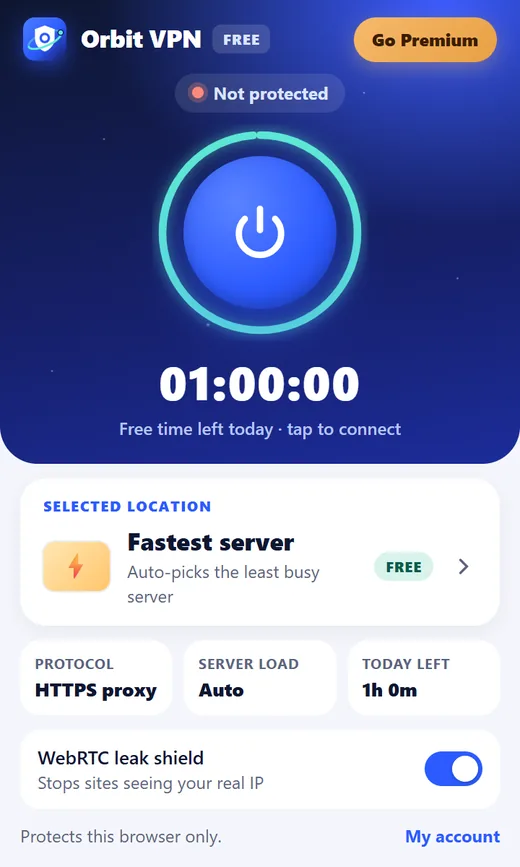
- The browser extension (Chrome and Microsoft Edge) protects the traffic of your browser over an encrypted proxy. Other apps on your computer are not affected. It has one-tap connect with a live timer, a WebRTC leak shield that's on by default, and a toolbar icon that shows whether you're protected.
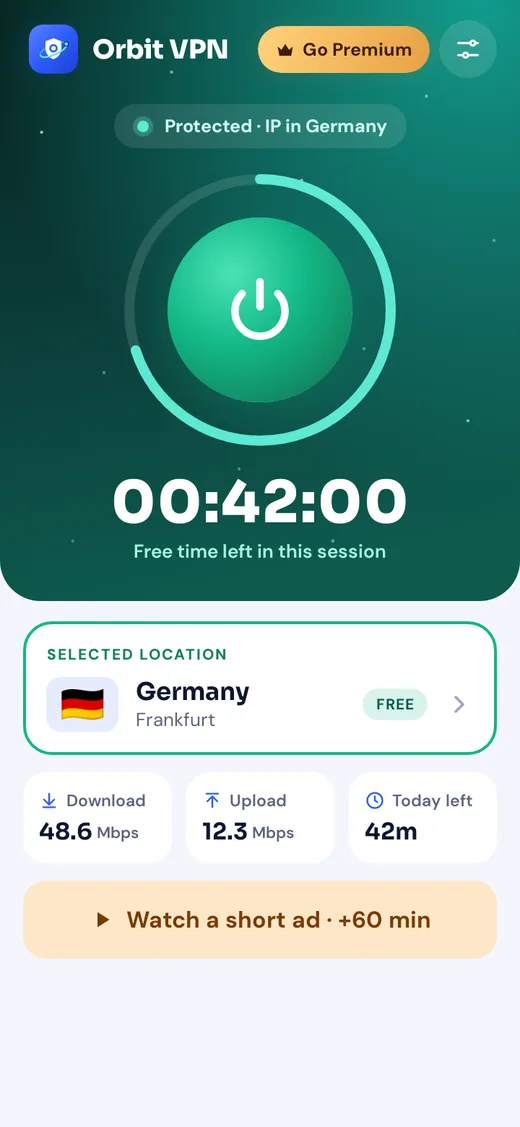
- The Android app (Android 8 and newer) protects every app on your phone through a WireGuard tunnel. It shows live download and upload speed, works with Always-on VPN as a kill switch, and lists every country with a search box and flags.
- One account covers both. Log in once in the extension and once on your phone, and your plan follows you. Premium connects up to 5 devices at the same time.
Either app works on the free plan — 2 locations for 60 minutes a day, with no account and no card. The Chrome Web Store, Edge Add-ons and Google Play listings are launching soon; you can create your free account at vpn.orbittechlab.com now and log in the day the apps arrive.
New to VPNs altogether? Start with what a VPN is and whether you need one, or see Orbit VPN alongside our other products.