
Free Wi-Fi is everywhere — the café, the airport gate, the hotel lobby, the train. It's also the one network in your day that's run by someone you've never met and shared with everyone else in the room. You don't need to avoid it. You need a handful of habits that take the risk out of it.
Here's what can actually go wrong on public Wi-Fi in 2026, and the eight things that prevent it.
What the real risks are
The good news first: most websites and apps now use HTTPS, so somebody sitting nearby can't simply read your passwords out of the air the way they could ten years ago. What's left is more specific:
- Fake hotspots. Anyone can set up a network called "Airport Free WiFi". Join it, and all your traffic passes through their equipment.
- A network that watches. Whoever runs the Wi-Fi can usually see which sites every device connects to, even when the pages themselves are encrypted.
- The sites and apps that still aren't encrypted. They're rarer now, but anything sent without HTTPS is readable by the network.
- Other devices on the same network. File sharing and device discovery that are harmless at home are visible to strangers here.
- Lookalike login pages. A sign-in screen that appears as you connect isn't always the venue's.
The 8-point checklist
1. Confirm the network name before you join
Ask a member of staff or read it off the printed sign. If there are two networks with nearly the same name, one of them isn't the venue's.
2. Keep an eye on the padlock — and never click past a warning
If your browser says a site's certificate is invalid, stop. On a network you don't control, that warning is exactly what an interception attempt looks like. Close the tab and try again on mobile data.
3. Switch on a VPN
A VPN wraps everything in an encrypted tunnel to a server you chose, so the Wi-Fi operator — real or fake — sees one encrypted connection and nothing else. It's the single habit that covers the most ground. Know what yours protects, though: a browser extension covers your browser, while an app covers the whole device. We compare the two here.
4. Turn off auto-join, and forget the network when you leave
Phones and laptops reconnect to any network whose name they recognise. That's convenient at home and risky everywhere else, because a fake hotspot only needs to copy a name your device already trusts.
5. Turn off sharing
On Windows, choose the Public network profile when you connect — it hides your computer from other devices. On a Mac or iPhone, set AirDrop to contacts only or off. On Android, switch off Quick Share and any hotspot you aren't using.
6. Put two-factor authentication on the accounts that matter
Email, banking and anything that can reset your other passwords. If a password ever does leak, a second factor is what stops it being enough.
7. Keep your device updated
Operating-system and browser updates fix the flaws that attacks on shared networks rely on. Install them before you travel, not on the hotel Wi-Fi.
8. Use mobile data for the truly sensitive things
If you're moving money or signing a contract and anything about the network feels off, switch to your phone's data or hotspot for those few minutes.
On your phone, make the VPN stay on
Phones hop between networks constantly, and every hop is a moment where a VPN can drop and apps carry on without it. Android has a setting for this: in your VPN settings, turn on Always-on VPN and block connections without the VPN. Nothing leaves the phone outside the tunnel, even while it reconnects. Use a VPN app that's built to work with it.
What a VPN won't fix
A VPN protects the connection, not your judgement. It won't make a fake login page real, and it won't stop you installing something you shouldn't. If the page asking for your password looks wrong, it's wrong with or without a tunnel. For the full picture of what a VPN does and doesn't do, read what a VPN is and whether you need one.
The short version
- Check the network name with staff.
- Never click through a certificate warning.
- Turn your VPN on before you open anything else.
- Turn off auto-join and sharing.
- Use two-factor authentication on important accounts.
- Keep your device updated.
- When in doubt, use mobile data.
A VPN built for exactly this
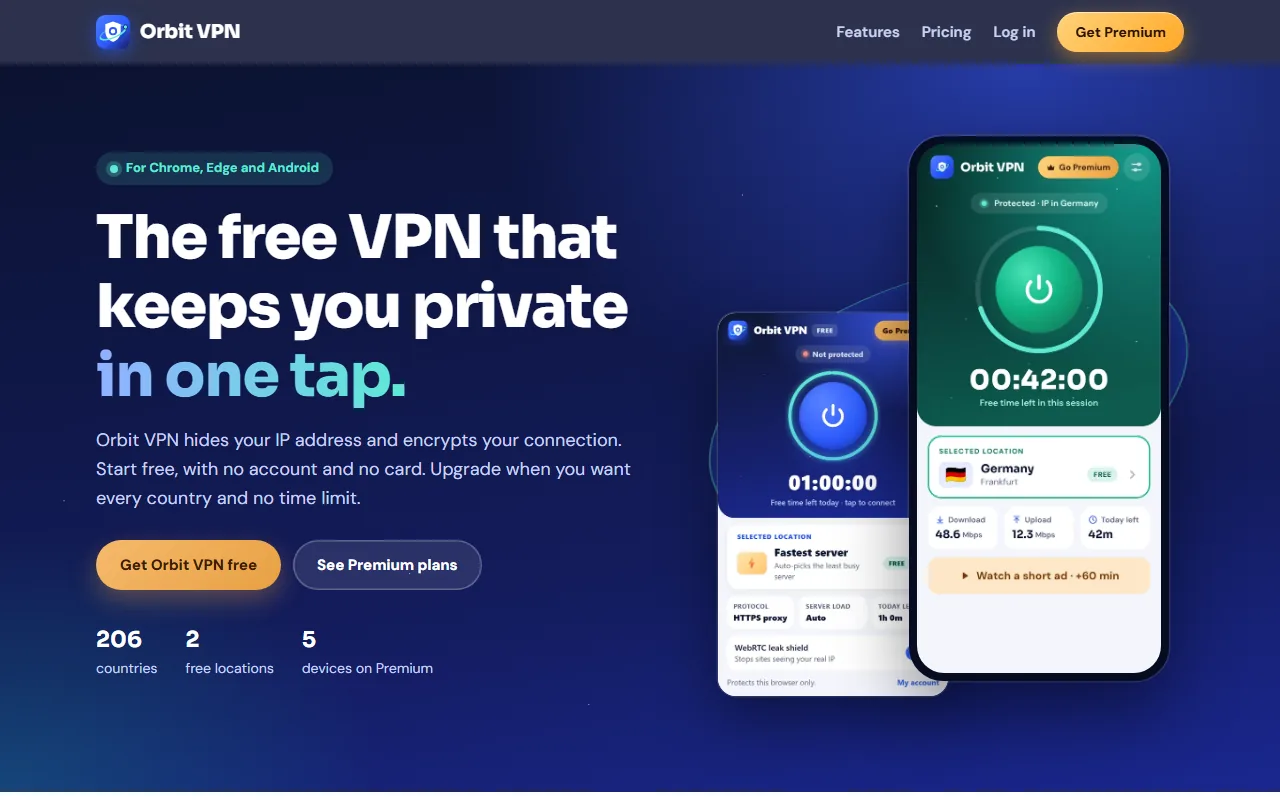
Occasional use on someone else's Wi-Fi is what the free plan on Orbit VPN Orbit Call AI is for: 2 locations for 60 minutes a day, with no account and no card. One tap connects you to the least busy server. The browser extension for Chrome and Microsoft Edge has a WebRTC leak shield that's on by default, and the Android app protects every app on your phone through a WireGuard tunnel and works with Always-on VPN as a kill switch.
We don't record the sites you visit, the content of your traffic, your DNS lookups or the IP address you connect from. If you travel often, Premium removes the time limit, unlocks every location and covers up to 5 devices, with a 14-day refund on every payment.
The Chrome Web Store, Edge Add-ons and Google Play listings are launching soon — create your free account now and log in the day the apps arrive. Weighing up a free plan? Read are free VPNs safe? first, or see Orbit VPN alongside our other products.